MySQL fundamentals / 01
Installing XAMPP
Set up XAMPP on Windows, choose components and an installation directory, and understand the UAC warning.
On this page
A web service needs a web server. XAMPP is a software bundle that helps you run a local server environment, including Apache, MariaDB, PHP, and Perl. The original tutorial is titled “Installing XAMPP (v3.3.0)” and focuses on its Windows installer.
Download the installer
Visit the Apache Friends download site and select the package for your operating system.
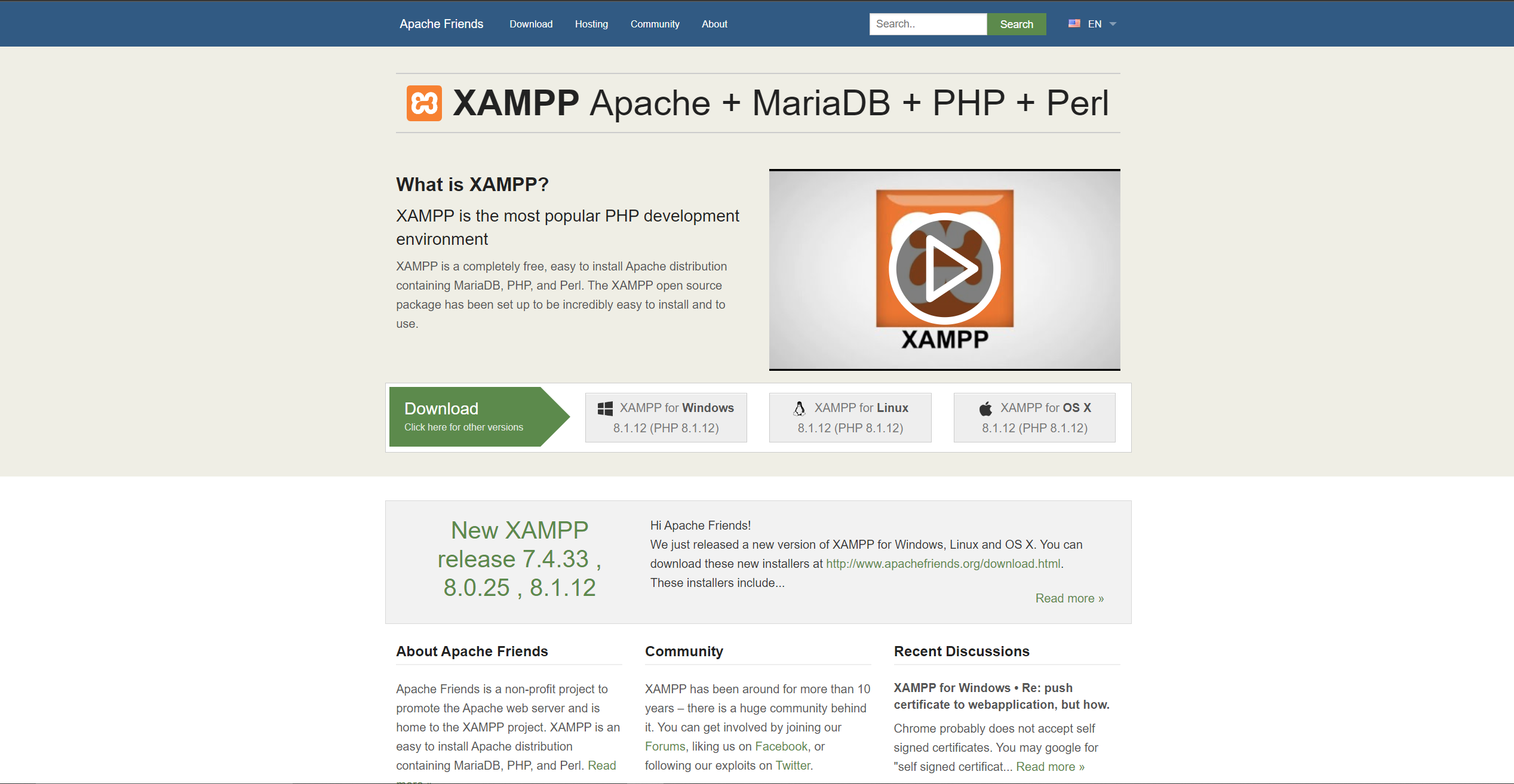
After the download finishes, double-click the installer to open it.
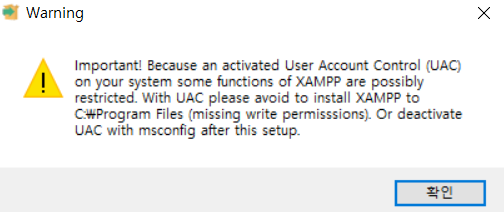
Understand the UAC warning
You may see the warning shown below. It explains that installing XAMPP under C:\Program Files can restrict functionality because of Windows User Account Control. A different installation directory avoids the particular permissions problem described by the installer. Acknowledge the message to continue.
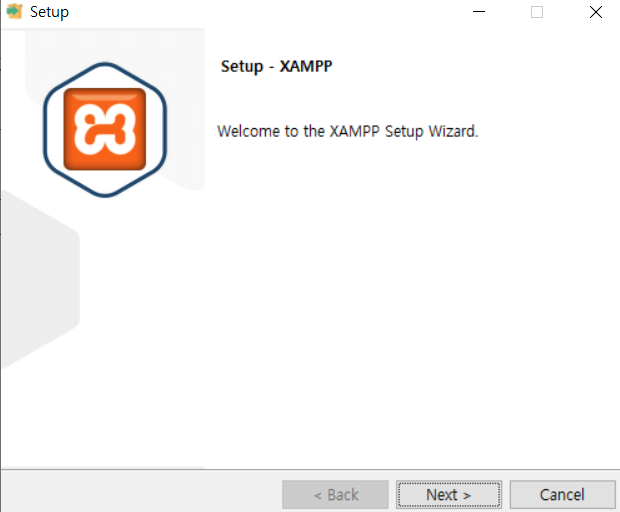
Click Next on the setup screen.
Choose components
This series focuses on MySQL-style database work. The original tutorial also suggests installing the FTP and Tomcat components, though you can select only the components you want. Click Next after making your choices.
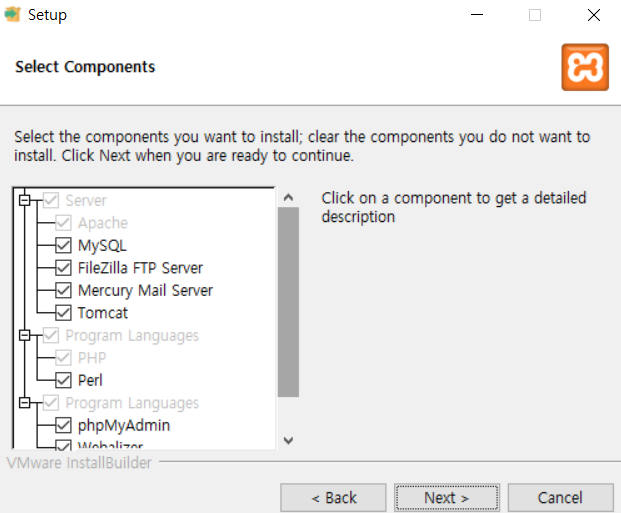
Editorial note: XAMPP bundles MariaDB, which is closely related to MySQL but is a separate database product. Optional components are not required merely to follow a database lesson; install only what your local work needs.
Select a directory and language
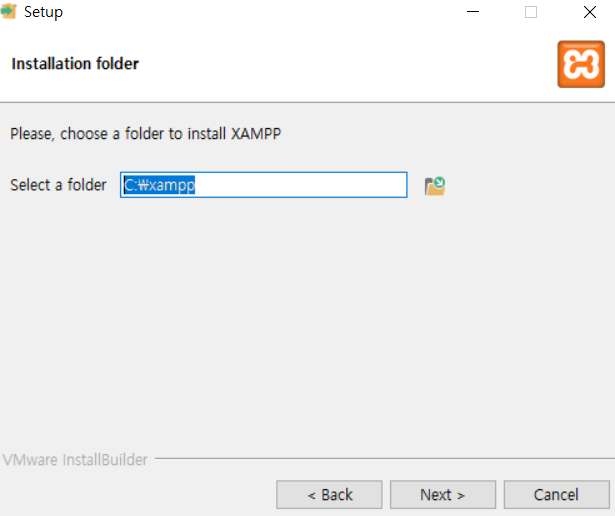
Choose an installation directory other than C:\Program Files for the setup described here, then click Next.
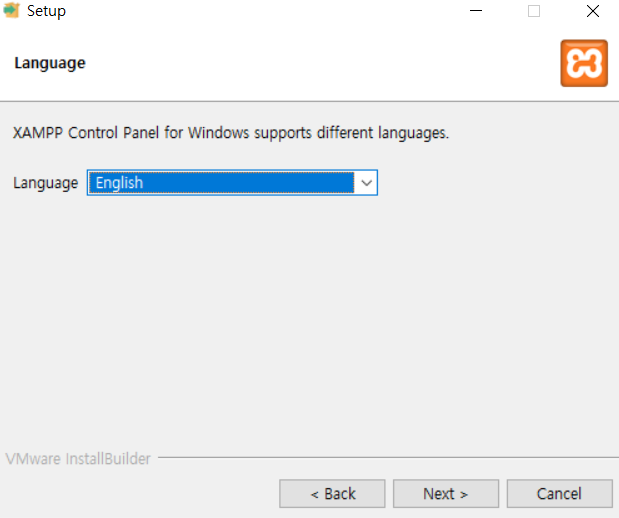
The installer shown offers English and German. Choose English and continue.
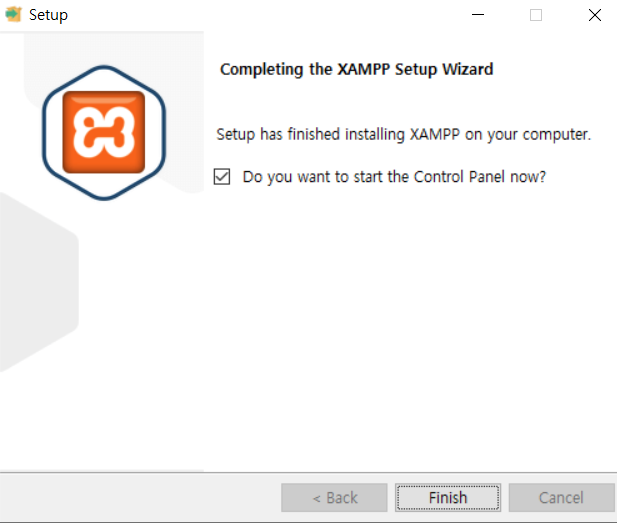
When installation is complete, the final setup screen appears:
The original post closes by previewing a basic XAMPP usage lesson. This is the only database post in the public archive.
Archive note: these screenshots and version references are from 2022. Use a maintained package for new work, and treat XAMPP as a local development environment rather than exposing this tutorial's default setup as a public production server.
Moved here from Tistory
I migrated this post from my Korean Tistory blog, I am Jason Lee, to this website and translated it into English. My writing and projects now live together in one place.
The original publication date, code examples, and screenshots are preserved. Editorial notes clarify known issues in the original material.
Original post on Tistory English edition · Aug 30, 2026