Unity fundamentals / 07
Collisions and Rigidbody2D
Add gravity and collisions to a 2D scene using a Rigidbody2D, BoxCollider2D, and the original practice sprites.
On this page

Welcome back to the Unity series! Today, we will learn about collisions and rigid bodies. Open Unity again:
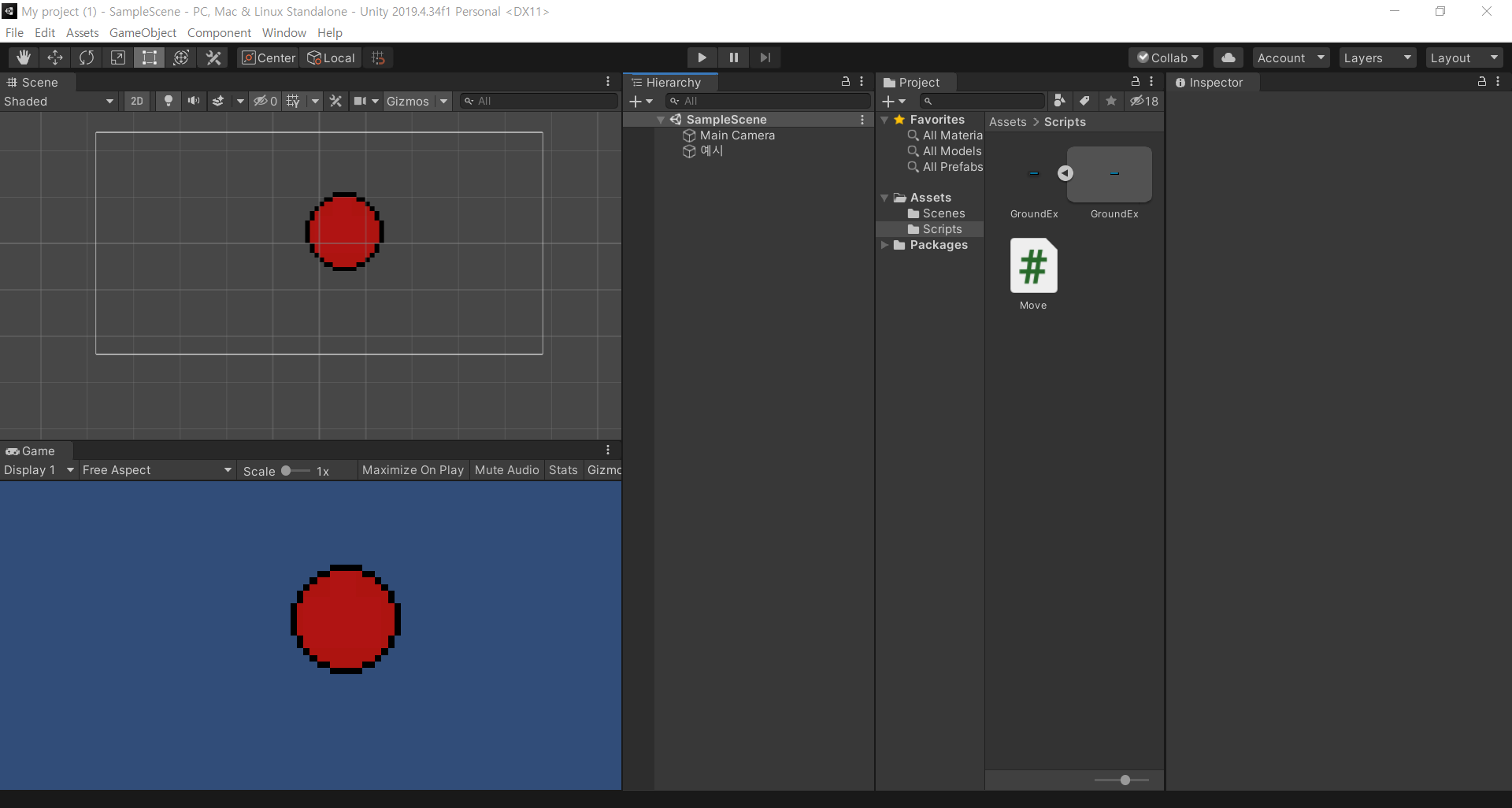
The original caption celebrates fixing the screenshot tool.
Our previous example object is a little awkward for this demonstration, so let's import a new one.

Its appearance is deliberately a little hard on the eyes. Drag it into the Project window, just as we did with the previous practice image.
Prepare the object
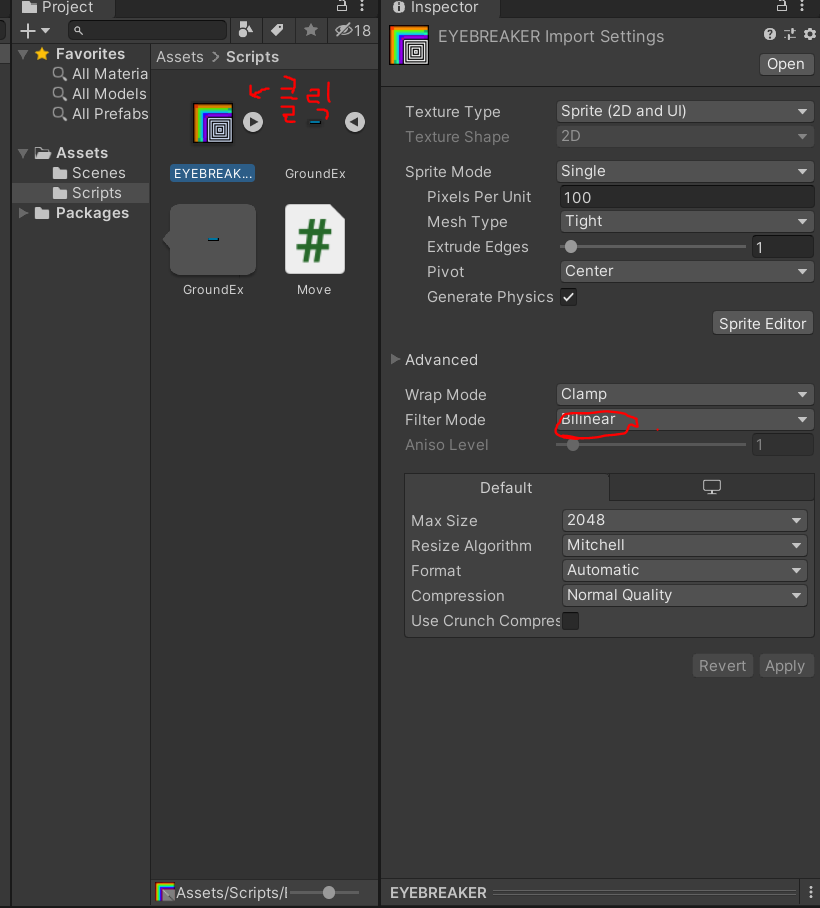
Select EYEBREAKER. In the Inspector, open the Filter Mode dropdown next to Bilinear and choose Point (no filter).
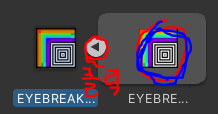
Expand the asset using the arrow highlighted in red, then drag the sprite into the Scene view. If Unity reports that the import settings have not been applied, click Apply.
An EYEBREAKER object now appears in the Hierarchy. Select it to see its components:
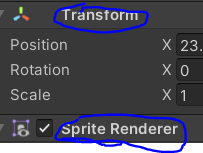
The blue outlines indicate components.
Set Transform → Scale to 50, 50, 1, which gives the practice sprite the size used by this lesson.
Add a Rigidbody2D
With the object selected, click Add Component, search for Rigidbody 2D, and add it.
Imagine dropping a cup: in the real world, gravity pulls it down. A plain Unity object does not automatically participate in that simulation. Adding a Rigidbody2D allows the 2D physics system to simulate properties such as mass, gravity, and motion for the object.
Press Play. EYEBREAKER falls because gravity now affects its dynamic rigid body.
Add the ground

Import and configure it in the same way. The original lesson recommends a scale of 1000, 100, 1. In the ground's Rigidbody2D Constraints, check all the Freeze Position and Freeze Rotation options so it stays in place.
Can we run the scene now and expect a collision? Not yet: we have added physics simulation, but we still need collision shapes.
Add colliders
Use Add Component to add a Box Collider 2D to EYEBREAKER, and add one to GroundEx as well.
A collider defines the shape used by the collision system. It is commonly paired with a Rigidbody so objects can interact instead of passing through one another.
Run the scene again. The falling object now lands against the ground. We have introduced both rigid bodies and colliders.
Editorial note: the frozen dynamic ground is the original teaching setup. A static ground collider is another common arrangement, and real collision behavior also depends on body type, trigger settings, layers, and movement method. A Rigidbody does not automatically model every real-world effect, such as detailed air resistance.
The original closing sentence promises “movement, part 2.” This is the last Unity installment available in the public archive.
Moved here from Tistory
I migrated this post from my Korean Tistory blog, I am Jason Lee, to this website and translated it into English. My writing and projects now live together in one place.
The original publication date, code examples, and screenshots are preserved. Editorial notes clarify known issues in the original material.
Original post on Tistory English edition · Aug 30, 2026