Unity fundamentals / 02
GameObjects and sprites
Create a 2D object, import a practice sprite, and adjust its position, rotation, and scale.
On this page

Last time, we toured the Unity editor. Today, let's work with GameObjects, the objects that make up a game. We can move and rotate them, but first we need the basics.
Open Unity, move to the Hierarchy window, and right-click:
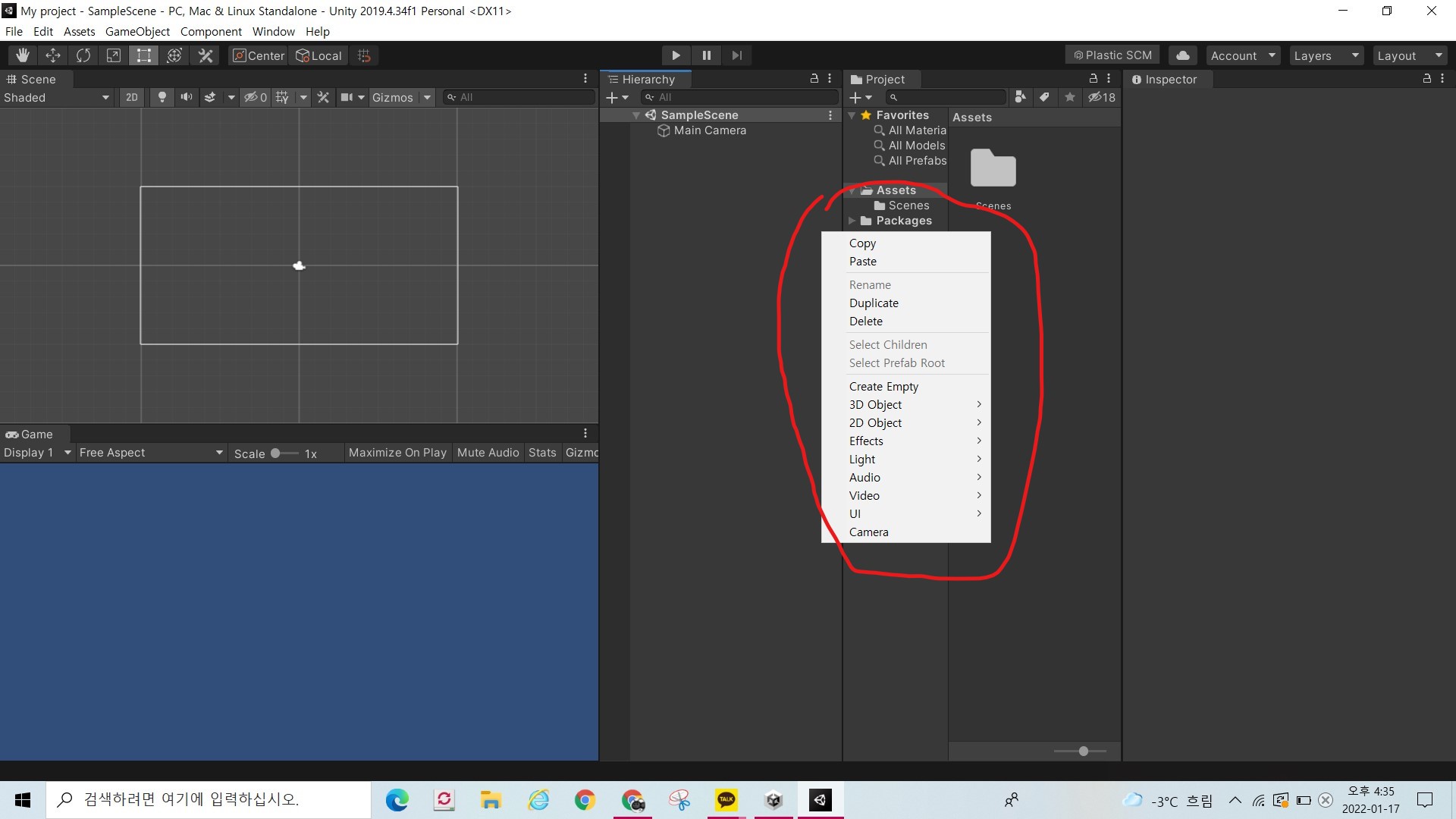
Choose 2D Object → Sprite in the editor version used by the tutorial. An object appears in the scene hierarchy and its properties appear in the Inspector, but it may not yet be visible in the Scene. That is not necessarily an error: the Sprite Renderer needs an image.
Import a practice sprite
We can import characters and other artwork from outside the project. This lesson uses the original practice image:
Download the example sprite (PNG).

In the Project window, right-click and choose Create → Folder. Name it Resources, open it, and drag the downloaded image into that folder.
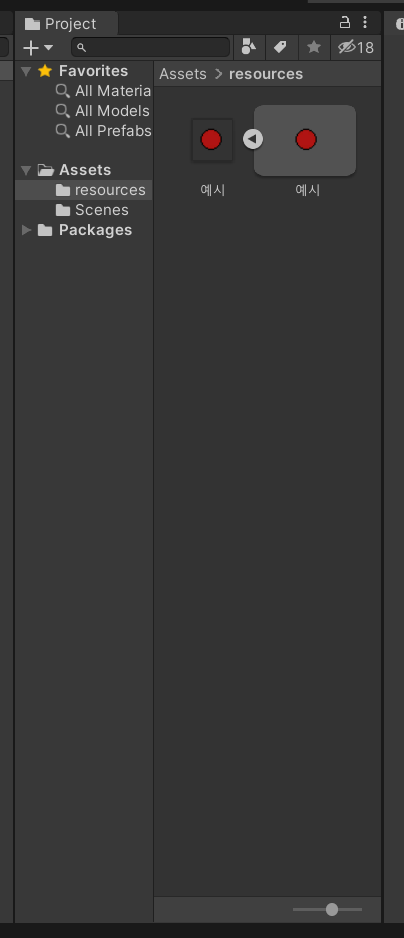
Click the arrow to expand the asset. Before dragging the second item—the sprite—into the Scene, select the first item to inspect its import settings.
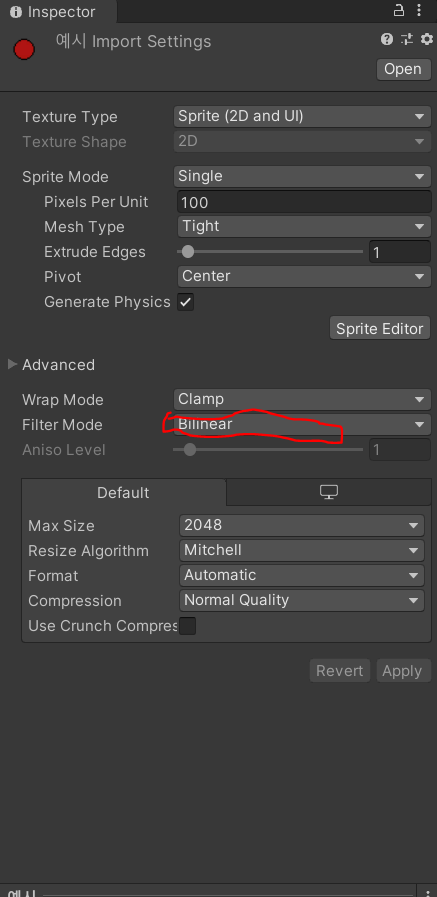
Change Filter Mode to Point (no filter). The original calls this “No point”; the setting's actual name is used here.
Now drag the sprite into the Scene. It may look small, so use the mouse wheel to zoom. You will also see an object named 예시 (“Example”) in the Hierarchy.
Transform the object
Select the object and look at its Transform component:
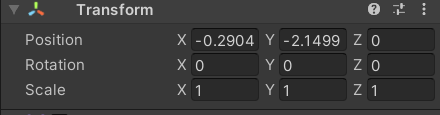
- Position controls coordinates.
- Rotation controls orientation.
- Scale controls size. Try changing its values.
Instead of editing every value manually, you can use the tools near the hand icon introduced in the previous lesson:

These tools manipulate the object directly in the Scene. With scripts, we will eventually be able to make an object follow the mouse, respond to directional keys, or jump.
Moved here from Tistory
I migrated this post from my Korean Tistory blog, I am Jason Lee, to this website and translated it into English. My writing and projects now live together in one place.
The original publication date, code examples, and screenshots are preserved. Editorial notes clarify known issues in the original material.
Original post on Tistory English edition · Aug 30, 2026