Unity fundamentals / 01
A tour of the editor
Find your way around Unity's Scene, Game, Hierarchy, Project, and Inspector windows and its main transform tools.
On this page

Last time, we installed Unity. Before building anything, let's get familiar with the editor. Continue from the previous lesson and create a project using the 2D template, since this series starts with 2D development.
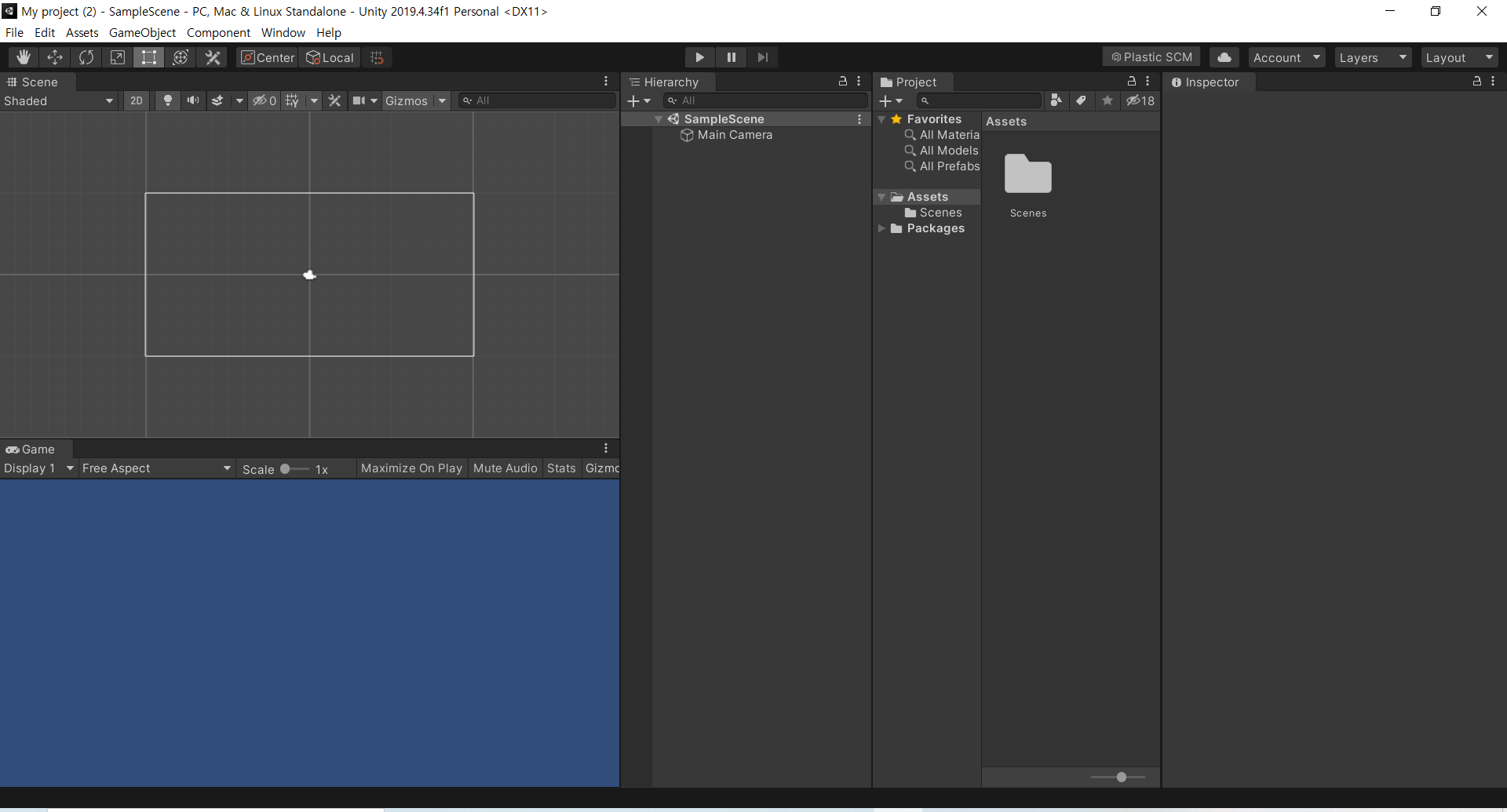
This is the Unity editor. The next screenshot numbers its main tools and windows:
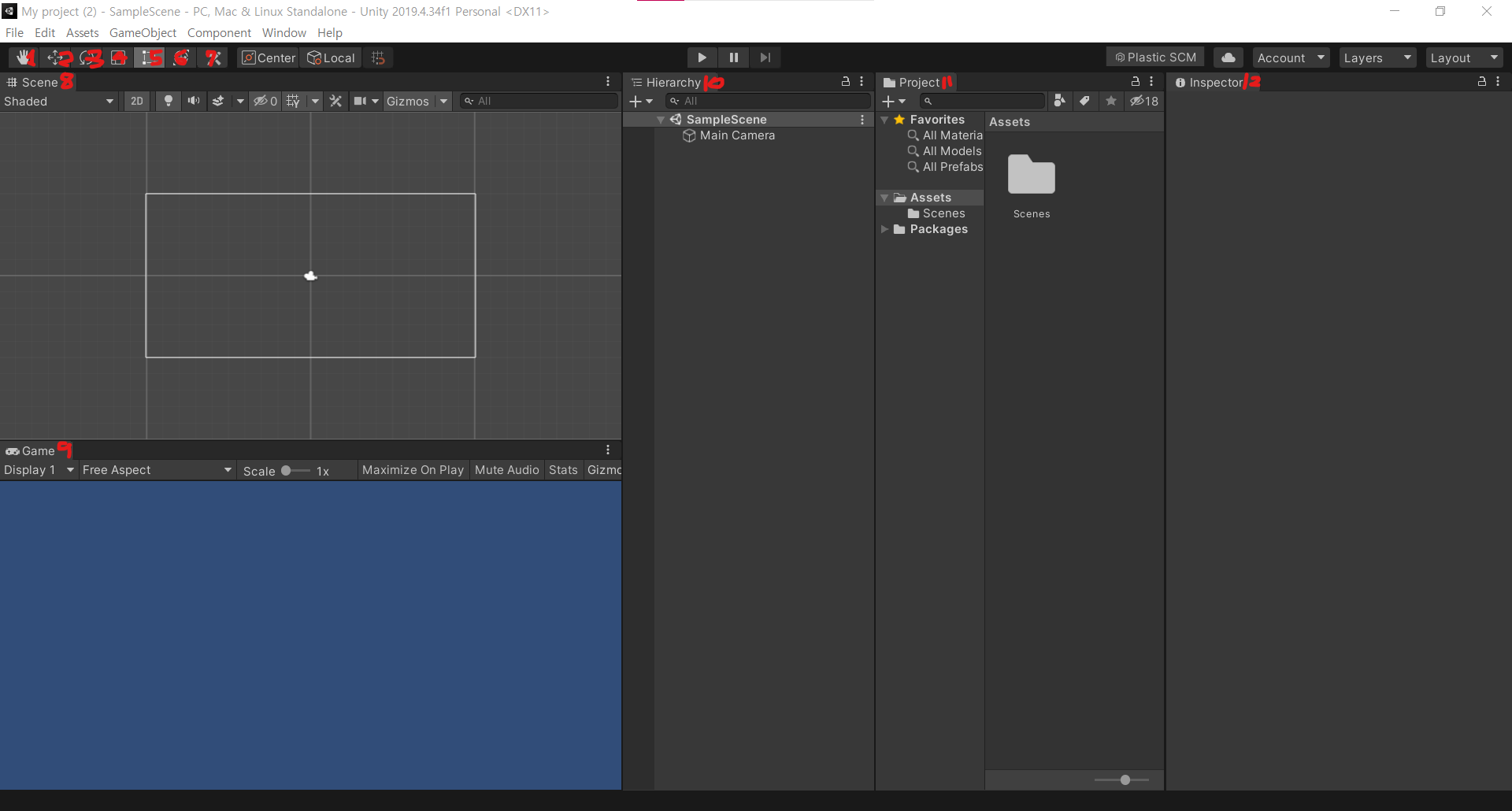
Tools and windows
- Hand tool: click and drag to pan around the Scene view.
- Move tool: move GameObjects in the Scene.
- Rotate tool: rotate GameObjects.
- Scale tool: change an object's scale.
- Rect tool: manipulate an object's rectangular bounds.
- Combined transform tool: move, rotate, and scale using a combined set of controls.
- Custom tools: access custom editor tools.
- Scene: arrange and edit the objects that make up the scene.
- Game: preview the game through its cameras, as a player would see it.
- Hierarchy: the objects in the current scene, organized by their parent/child relationships.
- Project: imported files, scripts, prefabs, and other project assets.
- Inspector: inspect and change the selected object's properties and components.
These are the main parts of the editor we will use. In the next lesson, we will work with GameObjects.
Translation note: the panel descriptions have been clarified while preserving the numbered tour. In particular, the Hierarchy represents scene objects; it is not itself the place where project files are stored.
Moved here from Tistory
I migrated this post from my Korean Tistory blog, I am Jason Lee, to this website and translated it into English. My writing and projects now live together in one place.
The original publication date, code examples, and screenshots are preserved. Editorial notes clarify known issues in the original material.
Original post on Tistory English edition · Aug 30, 2026