Unity fundamentals / 03
Installing Visual Studio Code
The original Windows editor setup for the Unity series, including its C# and Unity extension list.
On this page

We need a place to write scripts. This series uses Microsoft's Visual Studio Code. The original author chose it as a lighter-weight editor that provided enough functionality for these lessons.
Install the editor
Visit the official Visual Studio Code website and click the download button for your system.
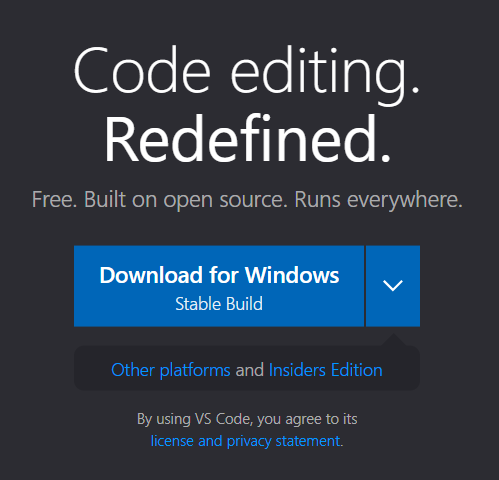
On Windows, the download in this tutorial has a name beginning with VSCodeUserSetup and ending in .exe. Open it, review and accept the license agreement, and continue through setup.
The original emphasizes using Microsoft's official download rather than an unknown source. A trusted download source is important, but no article can guarantee that any arbitrary downloaded file is free of malware.
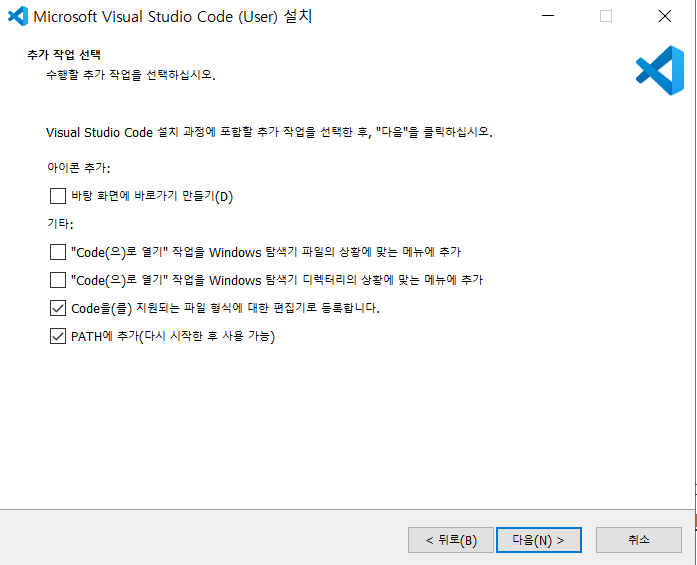
Creating a desktop shortcut is optional. Choose the additional tasks you want, click Next, and then Install.
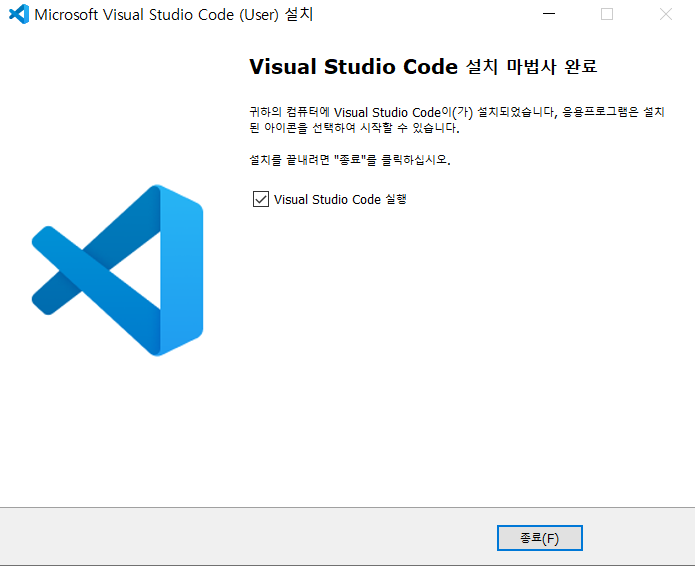
Click Finish. In the author's setup, installation completed in under a minute; your time may differ.
Extensions used in the original setup
After VS Code opens, look at the icons on its left side:

Choose the Extensions icon:

Search in the box highlighted by the original screenshot:
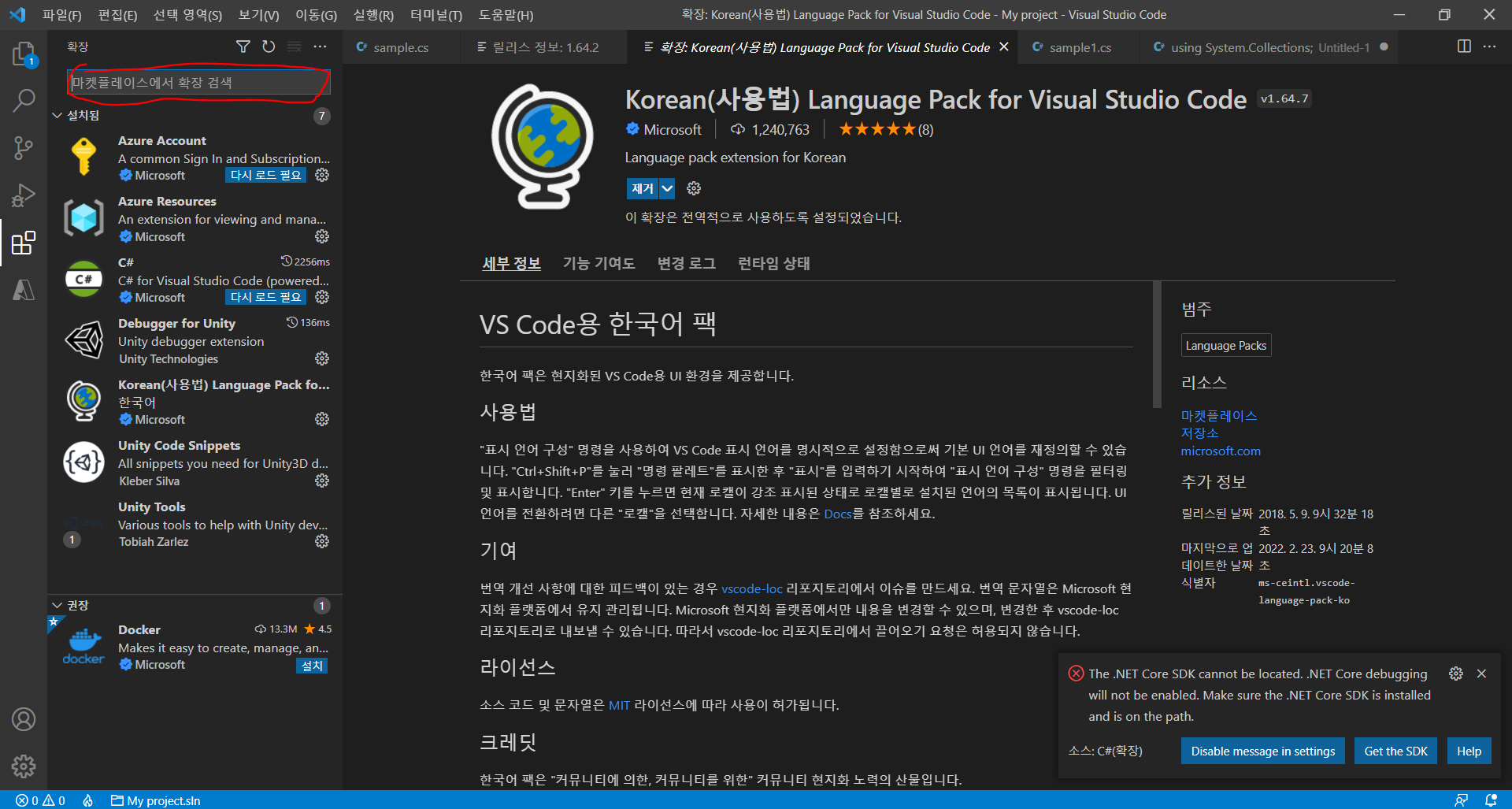
The tutorial's extension list is:
- C#: C# language support.
- Unity Code Snippets: snippets for Unity functions and patterns.
- Debugger for Unity: debugging support for finding and inspecting problems.
- Unity Tools: Unity-related editor functionality.
- Korean Language Pack (optional): a Korean-language interface.
Archive note: this extension list is from 2022. Some integrations have since changed or been deprecated. It is retained as part of the original walkthrough, not presented as a current required extension bundle. Editor integration improves the editing workflow; it is not what makes Unity able to execute valid scripts.
What is a script?
A script is code that tells GameObjects how to behave: move this way, respond to that action, or perform another task. Programmers use languages such as C++, C#, Java, JavaScript, and Python for different kinds of work.
For this Unity series, we use C#. Writing an ordinary English or Korean sentence such as “say hello computer” does not create a valid C# instruction. We need to learn the language's syntax to express those commands.
The next lessons connect the editor to Unity and introduce the structure of a script.
Moved here from Tistory
I migrated this post from my Korean Tistory blog, I am Jason Lee, to this website and translated it into English. My writing and projects now live together in one place.
The original publication date, code examples, and screenshots are preserved. Editorial notes clarify known issues in the original material.
Original post on Tistory English edition · Aug 30, 2026